Lesson 5 — Types of Computers
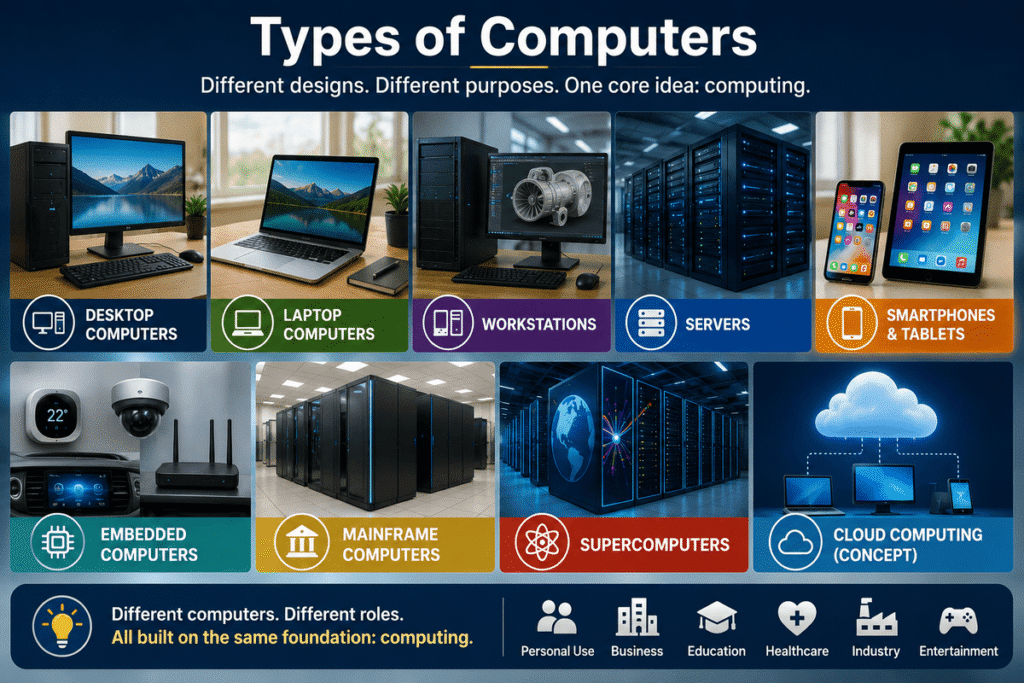
Computers are everywhere, but they do not all look, operate, or serve the same purpose. Understanding the types of computers is an essential step toward becoming an IT professional because the device you are supporting determines the hardware, operating environment, troubleshooting approach, performance expectations, and even the questions you should ask.
A desktop computer in an office, a laptop used by a remote employee, a server supporting hundreds of users, and a tiny computer embedded inside a smart device may look completely different. Yet they all follow the fundamental computing principles you have been learning.
In this Lesson, you will learn how computers can be classified by their design, capabilities, and intended use—and why those differences matter in real-world IT support.
🎯 Learning Objectives
By the end of this Lesson, you should be able to:
- Identify the major types of computers.
- Explain the characteristics of desktop and laptop computers.
- Distinguish personal computers from servers and workstations.
- Understand the role of tablets, smartphones, and other mobile computing devices.
- Explain what embedded computers are and where they are used.
- Recognize the purpose of mainframes and supercomputers.
- Compare different computer types according to portability, performance, purpose, and number of users.
- Select an appropriate type of computer for a basic real-world scenario.
- Understand why identifying the device type is important when providing IT support.
🧠 One Fundamental Idea, Many Different Machines
A computer does not have to look like the traditional monitor, keyboard, mouse, and tower that many people imagine when they hear the word computer.
At its core, a computer is an electronic system capable of accepting input, processing data according to instructions, producing output, and storing information.
What changes is how that computing capability is designed and used.
Different computers are optimized for different priorities:
- Performance
- Portability
- Storage capacity
- Reliability
- Number of users
- Energy efficiency
- Specialized workloads
- Cost
This is why there is no single “best” type of computer.
The right computer depends on the job it needs to perform.
🖥️ Desktop Computers
A desktop computer is a personal computer designed primarily to remain in a fixed location, such as a desk in a home, school, office, laboratory, or business.
A traditional desktop system commonly includes:
- A computer case containing the main internal components
- A monitor
- A keyboard
- A mouse
- Speakers or headphones
- Other peripherals as required
Desktop computers are widely used because they can provide an excellent combination of performance, affordability, repairability, and upgradeability.
🔧 Why Desktops Matter in IT Support
Desktop systems are especially important for beginning IT professionals because their components are often easier to access than those inside portable devices.
Depending on the system, a technician may be able to replace or upgrade components such as:
- RAM
- Storage drives
- Graphics cards
- Power supplies
- Cooling systems
- Expansion cards
This modular design can make desktops easier to diagnose, repair, and upgrade.
🏢 Common Desktop Uses
Desktop computers are frequently found in:
- Business offices
- Schools
- Libraries
- Computer laboratories
- Reception areas
- Retail environments
- Home offices
- Gaming setups
A desktop is usually a strong choice when portability is not a major requirement.
💼 Laptop Computers
A laptop computer is a portable personal computer that integrates most of the components needed for everyday computing into a single compact device.
A typical laptop includes:
- Display
- Keyboard
- Touchpad
- Processor
- Memory
- Storage
- Battery
- Speakers
- Wireless networking
- Built-in camera and microphone
Unlike a desktop, a laptop can operate for a period of time without being connected directly to an electrical outlet because it contains a rechargeable battery.
🚶 Portability Changes the Design
Portability is one of the greatest advantages of laptops, but achieving it requires engineering compromises.
Laptop components must fit inside a much smaller space while controlling:
- Heat
- Power consumption
- Weight
- Battery usage
As a result, laptops are often less modular than traditional desktops.
Some components may be replaceable or upgradeable, while others may be integrated directly into the system.
🌎 Where Laptops Are Used
Laptops are common among:
- Students
- Remote workers
- Business professionals
- IT technicians
- Travelers
- Teachers
- Developers
- Field employees
For many organizations, laptops have become the primary computers issued to employees because users can work from multiple locations.
⚡ Workstations
A workstation is a high-performance computer designed for demanding professional workloads.
At first glance, a workstation may look similar to a powerful desktop computer. The difference is primarily in what the system is designed to accomplish.
Workstations may include:
- Powerful multicore processors
- Large amounts of RAM
- Professional-grade graphics hardware
- High-speed storage
- Advanced cooling
- Specialized hardware
They are commonly used for workloads such as:
- Engineering
- Computer-aided design (CAD)
- Scientific analysis
- 3D modeling
- Professional video production
- Software development
- Architecture
- Data-intensive applications
🧩 Desktop vs. Workstation
The physical appearance alone does not determine the category.
A normal office desktop might be designed for email, web browsing, documents, and business applications.
A workstation may be designed to process complex engineering models or render sophisticated 3D environments.
The important distinction is purpose and capability.
🗄️ Servers
A server is a computer or computing system designed to provide resources, data, applications, or services to other computers or users over a network.
Those other systems are often called clients.
For example, when employees access shared company files, the files may be stored on a server rather than individually on every employee’s computer.
Servers can provide services such as:
- File storage
- Websites
- Databases
- User authentication
- Applications
- Printing
- Backups
- Network services
🏢 Servers Are Built Around Service
Servers are commonly designed with priorities different from ordinary personal computers.
Depending on their role, organizations may prioritize:
- Reliability
- Availability
- Storage capacity
- Network performance
- Processing power
- Redundancy
- Security
- Remote management
A business may depend on a server continuously. If that server fails, many users or services could be affected simultaneously.
That makes server troubleshooting potentially much more consequential than troubleshooting a single user’s PC.
🔗 One Server, Many Clients
Imagine an office with 50 employees.
Instead of maintaining separate copies of an important shared database on 50 computers, the organization may maintain the database centrally on a server.
The employees’ computers communicate with that server through the network.
This introduces an important concept:
Computers do not always work independently. They frequently work together.
You will explore networking and server technologies much more deeply later in your IT training.
📱 Smartphones and Tablets
Modern smartphones and tablets are computers.
They contain many of the same fundamental categories of components found in traditional computer systems:
- Processor
- Memory
- Storage
- Input devices
- Output devices
- Operating system
- Network connectivity
The major difference is how these components are packaged and optimized.
👆 Touch-Based Computing
Tablets and smartphones rely heavily on touchscreen interfaces.
The display can act as both:
Input — when you touch, swipe, or type on it.
Output — when it displays text, images, applications, and video.
These devices are optimized for portability, wireless communication, battery efficiency, and ease of use.
📲 Smartphones
Smartphones combine computing capabilities with communication technologies.
Beyond traditional telephone functions, they can:
- Access the internet
- Run applications
- Capture photos and video
- Send email
- Participate in video conferences
- Navigate using GPS
- Store documents
- Access cloud services
- Connect to other devices
For an IT professional, smartphones are not merely personal accessories. They may be endpoints connected to organizational systems and therefore require configuration, security, troubleshooting, and support.
📟 Tablets
Tablets generally provide larger displays than smartphones while remaining more portable than traditional laptops.
They are frequently used in:
- Education
- Healthcare
- Warehouses
- Restaurants
- Retail
- Field services
- Business presentations
Some tablets can also connect to external keyboards and other peripherals, allowing them to perform tasks traditionally associated with laptops.
🧩 Embedded Computers
Some of the most interesting computers are the ones users rarely recognize as computers.
An embedded computer, or embedded system, is a computing system incorporated into another device to perform specific functions.
Embedded computers can be found inside:
- Automobiles
- Printers
- Routers
- Smart televisions
- Appliances
- Security cameras
- Industrial machinery
- Medical equipment
- Point-of-sale systems
- Smart home devices
Unlike a general-purpose personal computer, an embedded system is usually designed to perform a limited set of specialized tasks.
🚗 A Computer You May Never See
Consider a modern automobile.
It may contain numerous electronic control systems responsible for functions such as:
- Engine management
- Braking
- Airbags
- Climate control
- Entertainment
- Navigation
- Driver assistance
The driver does not normally interact with these systems as if they were traditional PCs, but computing is happening throughout the vehicle.
This demonstrates an important principle:
A computer is defined by what it does—not simply by what it looks like.
🏦 Mainframe Computers
A mainframe is a powerful computing system designed to process extremely large volumes of transactions and data while supporting many users and applications.
Mainframes have historically been important in large organizations where reliability, security, scalability, and high-volume transaction processing are critical.
They may be used by:
- Banks
- Insurance companies
- Governments
- Large corporations
- Transportation organizations
For example, a financial institution processing enormous numbers of transactions requires systems capable of handling large workloads reliably.
Mainframes are not simply oversized desktop computers. They are designed for fundamentally different operational requirements.
🔬 Supercomputers
A supercomputer is an extremely powerful computing system designed to perform massive numbers of calculations at very high speeds.
Supercomputers are commonly associated with complex scientific and computational problems.
Applications can include:
- Weather and climate modeling
- Scientific simulations
- Physics research
- Engineering research
- Molecular modeling
- Artificial intelligence research
- Large-scale data analysis
While a personal computer may execute demanding applications for one user, a supercomputer can combine enormous computing resources to solve problems that would be impractical for ordinary systems.
☁️ What About Cloud Computers?
You will frequently hear terms such as cloud computing, virtual machines, and cloud servers in modern IT.
Cloud computing does not mean that computers have disappeared.
The opposite is true.
Cloud services ultimately run on physical computing infrastructure located in data centers. Software technologies allow those physical resources to be divided, combined, automated, and delivered to users over networks.
A virtual server may not correspond to one dedicated physical machine, but physical processors, memory, storage, networking equipment, and data-center systems still perform the underlying work.
This distinction will become increasingly important as you advance through the program.
🔍 Comparing the Major Types of Computers
The differences become easier to understand when you compare their primary roles.
| Computer Type | Primary Purpose | Portability | Typical Users |
|---|---|---|---|
| Desktop | General personal or business computing | Low | Individual users |
| Laptop | Portable general computing | High | Individual users |
| Workstation | High-performance professional workloads | Usually low | Specialized professionals |
| Server | Provide services and resources | Usually low | Multiple users/systems |
| Smartphone | Mobile communication and computing | Very high | Individual users |
| Tablet | Portable touch-based computing | Very high | Individual/business users |
| Embedded System | Perform specialized functions | Depends on device | Often operates automatically |
| Mainframe | Large-scale transaction and data processing | Very low | Large organizations |
| Supercomputer | Extremely intensive computation | Very low | Research/scientific organizations |
These categories are useful, but technology does not always fit perfectly into one box.
Modern devices increasingly overlap.
A powerful laptop can perform work once reserved for workstations. A tablet can use a keyboard and behave more like a laptop. A server can exist as a virtual machine instead of one dedicated physical computer.
As an IT professional, you should learn the categories without assuming that every device fits neatly into only one of them.
🛠️ Why Computer Type Matters in IT Support
Imagine someone tells you:
“My computer isn’t working.”
That statement gives you almost no useful technical information.
Your first questions might include:
- What kind of computer is it?
- Is it a desktop or laptop?
- What operating system does it use?
- Is the problem affecting only this device?
- Is the computer connecting to a server?
- Is it a company-managed device?
- Is the issue related to hardware, software, power, or networking?
The type of computer immediately changes the troubleshooting context.
For example:
A desktop that does not power on may require checking its power cable, outlet, power supply, and internal components.
A laptop may introduce additional possibilities such as the battery, AC adapter, charging circuitry, or docking station.
A server failure may require a completely different response because multiple users and business services could be affected.
Good IT support begins by understanding what system you are actually supporting.
🧪 Practical Activity — Identify the Computers Around You
Look around your home, school, workplace, neighborhood, or another environment you know well.
Identify at least five devices that contain or qualify as computers.
For each device, determine:
- What type of computer is it?
- What is its primary purpose?
- Is it portable?
- Does one person use it or can it serve multiple users?
- Does it communicate with other computers?
- Is it general-purpose or specialized?
Do not limit yourself to obvious PCs.
Look for computing inside everyday technology.
🎯 Your IT Mission
Imagine you are a junior IT support technician helping four different users.
User A needs a computer that will remain in an office and should be easy to upgrade.
User B travels frequently and needs to work from different locations.
User C creates complex professional 3D models and requires high performance.
User D manages a business application that must be available to dozens of employees across a network.
Choose the most appropriate computer type for each user and explain why.
Your goal is not simply to name the devices.
Think like an IT professional:
Requirement → Computer Type → Reason
✅ Skills Checklist
Before moving to the Knowledge Evaluation, make sure you can:
Explain why computers exist in many different forms.
Describe the main characteristics of desktop computers.
Explain why laptops are considered portable computers.
Distinguish a workstation from a typical desktop.
Explain the basic purpose of a server.
Recognize smartphones and tablets as computer systems.
Identify examples of embedded computers.
Explain the general purpose of mainframes.
Explain what supercomputers are designed to accomplish.
Compare computers according to purpose, performance, portability, and users.
Explain why identifying the computer type matters during troubleshooting.
If several of these points are still unclear, review the corresponding sections before continuing.
📘 Lesson Summary
There is no single form of computer.
The major types of computers exist because different environments and workloads require different combinations of portability, performance, reliability, capacity, and specialization.
You learned that:
- Desktop computers provide general-purpose computing and are often easy to repair or upgrade.
- Laptops combine general computing with portability and battery operation.
- Workstations provide increased performance for demanding professional applications.
- Servers provide resources and services to other systems and users.
- Smartphones and tablets are highly portable computers optimized for mobile interaction.
- Embedded computers perform specialized functions inside larger devices or systems.
- Mainframes support high-volume enterprise processing and large numbers of transactions.
- Supercomputers perform extremely intensive scientific and computational workloads.
- Cloud and virtual systems still depend on physical computing infrastructure.
Most importantly, you learned to look beyond physical appearance.
For an IT professional, the question is not simply:
“Is this a computer?”
The more useful questions are:
“What type of computer is this, what is it designed to do, and how does that affect the way I support it?”
That shift in thinking is part of developing a professional troubleshooting mindset.
📝 Knowledge Evaluation
1. Which type of computer is generally designed to remain in a fixed location and is often relatively easy to upgrade?
A. Smartphone
B. Desktop computer
C. Tablet
D. Embedded system
2. What is one of the defining advantages of a laptop computer?
A. It cannot connect wirelessly.
B. It always requires an external monitor.
C. It combines computing components with portability and battery operation.
D. It is designed exclusively to provide network services.
3. Which type of computer is most appropriate for demanding professional workloads such as 3D modeling, CAD, or engineering applications?
A. Workstation
B. Smartphone
C. Embedded system
D. Basic tablet
4. What is the primary role of a server?
A. To operate only without a network
B. To provide resources or services to other systems and users
C. To replace all mobile devices
D. To perform only scientific simulations
5. Why are smartphones considered computers?
A. Because they can make telephone calls
B. Because they contain only storage devices
C. Because they can accept input, process data, produce output, store information, and execute software
D. Because every computer must have a touchscreen
6. Which is the best example of an embedded computer?
A. A traditional office desktop
B. A high-performance engineering workstation
C. A control system built into a washing machine
D. A laptop used by a student
7. Mainframe computers are particularly well suited for:
A. Large-scale transaction and enterprise data processing
B. Personal mobile photography only
C. Replacing every embedded system
D. Basic offline word processing for one user
8. What is a supercomputer primarily designed for?
A. Everyday personal email
B. Extremely intensive computational workloads
C. Basic smartphone applications
D. Portable office work
9. Why does identifying the type of computer matter to an IT support technician?
A. Because all computer types require exactly the same troubleshooting procedure
B. Because the type of system affects its hardware, purpose, possible problems, and troubleshooting approach
C. Because only desktop computers require technical support
D. Because computer type determines the user’s password
10. A company needs a system that provides a shared application to many employees over a network. Which computer type is most appropriate?
A. Server
B. Tablet
C. Smartphone
D. Embedded controller
🏁 Finished?
You have completed Lesson 5 — Types of Computers.
The next step is to check what you have learned.
Do not focus only on your score. Pay attention to why each answer is correct. Understanding the reasoning is what turns information into usable technical knowledge.
🚀 Continue Your IT Journey
Now that you can identify the major types of computers and understand the different purposes they serve, the next step is to recognize how deeply computing technology is integrated into the world around you.
Computers are no longer limited to desktops, laptops, or even devices with visible screens and keyboards. They help run homes, businesses, hospitals, schools, transportation systems, communication networks, financial services, entertainment, and countless everyday activities—often working quietly in the background.
In the next Lesson, you will discover where computers are used in daily life, how they influence the way people live and work, and why understanding their growing role is essential for anyone preparing for a career in IT.
→ Explore Lesson 6 — Computers in Everyday Life