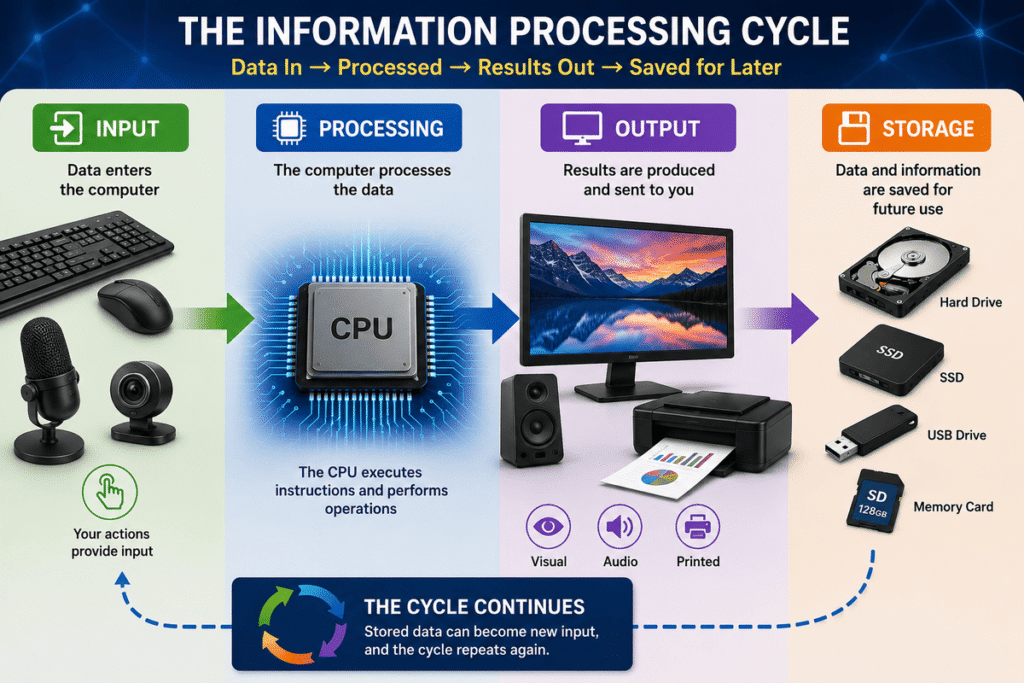
Every time you type a message, move a mouse, open an application, watch a video, save a document, or search the internet, your computer performs a series of coordinated operations. Understanding Input, Processing, Output, and Storage reveals the fundamental cycle behind those operations and helps you see what a computer is actually doing with information.
A computer may appear to perform hundreds of different tasks, but beneath that complexity is a surprisingly simple principle:
Data enters → data is processed → results are produced → information may be stored.
This is commonly known as the information processing cycle, and it is one of the most important foundational concepts for understanding computer systems.
Once you understand this cycle, computers stop looking like mysterious machines. You begin to see them as systems in which hardware and software work together to receive data, process instructions, communicate results, and preserve information for future use.
 Learning Objectives
By the end of this Lesson, you will be able to:
- Define input, processing, output, and storage.
- Identify common input, processing, output, and storage components.
- Explain how data moves through the information processing cycle.
- Distinguish between data entering a computer and information leaving it.
- Understand the role of the CPU during processing.
- Explain why storage is essential for preserving data.
- Recognize that one device can sometimes perform more than one function.
- Trace a simple real-world computer task from input to output and storage.
- Use the information processing cycle as a basic troubleshooting model.
 1. Input — Getting Data Into the Computer
Before a computer can do something useful, it usually needs to receive data or instructions.
This is called input.
Input is any data, instruction, command, or signal that enters a computer system so that it can be processed.
When you press a key on a keyboard, click a mouse button, touch a screen, speak into a microphone, or scan a document, you are providing input.
Common input devices include:
- Keyboard
- Mouse
- Touchscreen
- Microphone
- Scanner
- Webcam
- Barcode reader
- Game controller
- Touchpad
Consider typing the letter A.
To you, the action is simple: you press a key.
To the computer, something much more important has happened. The keyboard detects the keypress and sends data representing that action to the computer.
The keyboard does not decide what should happen with the letter.
It provides the input.
The computer must process that input before something meaningful appears on the screen.
 Input Is More Than Physical Devices
Input does not always come directly from a person.
A computer can also receive input from:
- Another computer
- A network
- A website
- A sensor
- A camera
- A software application
- A server
- An external storage device
For example, when a weather sensor sends temperature data to a computer, that information is input even though nobody typed it manually.
The essential idea is:
Input provides the computer with something to work with.
 2. Processing — Turning Data Into Something Useful
Receiving data is only the beginning.
The computer must determine what to do with it.
This stage is called processing.
Processing occurs when a computer performs operations on data according to instructions.
The Central Processing Unit (CPU) plays a central role in this process. It executes instructions and performs the operations required by programs.
Processing can involve actions such as:
- Performing calculations
- Comparing values
- Sorting information
- Following program instructions
- Making logical decisions
- Transforming data
- Coordinating operations with other hardware
Return to our example.
You press the A key.
The keyboard sends input to the computer. The computer receives information indicating which key was pressed. The operating system and application interpret that information and determine what should happen.
If you are working in a text editor, the system may determine:
Display the character “A” at the current cursor position.
That decision and the operations required to carry it out are part of processing.
 Processing Happens Extremely Fast
Modern computers can perform enormous numbers of operations every second.
This speed can make the process appear instantaneous.
You press a key and immediately see a character.
You click an icon and an application opens.
You enter numbers into a calculator and receive the answer almost immediately.
But speed does not eliminate the underlying process.
The computer still has to:
Receive → Interpret → Execute → Produce a result.
Understanding that sequence becomes extremely important when troubleshooting computer problems.
 3. Output — Receiving the Result
After data has been processed, the computer often needs to communicate the result.
This is called output.
Output is information produced by a computer and delivered to a person, another device, or another system.
Common output devices include:
- Monitor
- Printer
- Speakers
- Headphones
- Projector
For example:
You press A on the keyboard.
The keyboard provides input.
The computer processes the keypress.
The monitor displays:
A
The character appearing on the screen is output.
 Output Is Not Always Visual
Many beginners associate output only with monitors, but computers can communicate results in several ways.
A computer can produce:
Visual output — text, images, graphics, video.
Audio output — music, voices, notifications, alarms.
Printed output — documents, photographs, receipts, labels.
Output can also be sent electronically to another device or computer system.
The important question is:
What result did the computer produce, and where did that result go?
 4. Storage — Keeping Data for Later
Not everything should disappear when a computer finishes processing it.
Sometimes information must be preserved.
This is the role of storage.
Storage allows a computer to retain data, programs, documents, and other information so they can be accessed again later.
Common storage devices include:
- Solid-State Drives (SSD)
- Hard Disk Drives (HDD)
- USB flash drives
- Memory cards
- External drives
Suppose you write a document.
You type information using the keyboard.
The computer processes your actions.
The monitor displays the document.
But what happens when you click Save?
The computer writes the document’s data to a storage device.
Later—even after shutting down and restarting the computer—you can open that document again because the information was stored.
This illustrates an important distinction:
Output lets you receive the result.
Storage lets you keep the data.
 The Information Processing Cycle
Now we can connect the four concepts.
A basic computer operation can be represented as:
Input → Processing → Output → Storage
However, this should not be interpreted as a rigid sequence in which storage must always occur last.
Computer systems are more dynamic than that.
Stored information can become new input. Processing may access stored data. Output may occur without permanent storage. A computer may repeatedly move information between these functions.
For learning purposes, however, the four-part model gives us a powerful way to understand what is happening.
 Example: Writing and Saving a Document
Imagine that you type:
My first IT lesson
Input
You press keys on the keyboard.
Processing
The computer interprets the keypresses and the application determines how the characters should appear.
Output
The words appear on your monitor.
Storage
When you save the document, its data is written to a storage device.
The entire process can therefore be summarized as:
Keyboard → Computer processing → Monitor → Storage device
A task that feels completely ordinary now reveals the basic architecture of information flow.
 One Device Can Perform Multiple Functions
It is tempting to place every device into exactly one category.
Real computer systems are not always that simple.
Some devices can perform more than one function.
A touchscreen, for example, can act as:
- An output device because it displays information.
- An input device because it detects your touch.
A multifunction printer may:
- Produce output by printing.
- Receive input by scanning.
A storage device can provide stored data to the computer and later receive new data from it.
This teaches an important IT principle:
Classify technology according to what it is doing in the situation—not simply according to its name.
Data Can Move Through the Cycle Repeatedly
The information processing cycle is not necessarily a one-time event.
Consider watching a video.
The computer retrieves video data from storage or a network.
That data is processed.
Images are displayed on the monitor.
Sound is produced through speakers or headphones.
Meanwhile, you may move the mouse, adjust the volume, pause the video, or select another video.
Each action creates new input.
That input triggers additional processing.
New output follows.
The cycle continues.
Modern computing is therefore better understood as a continuous flow of information between users, hardware, software, storage devices, networks, and other systems.
 Why This Matters in IT Support
The information processing cycle is not just theory.
It can help you troubleshoot problems.
Suppose a user says:
“My computer isn’t working.”
That description is too general.
An IT professional begins breaking the problem into smaller questions.
Is the Input Working?
Does the keyboard respond?
Does the mouse move?
Is the microphone detecting sound?
Is the scanner sending information?
Is Processing Occurring?
Is the application responding?
Is the operating system frozen?
Is the CPU overloaded?
Is the system executing the requested operation?
Is the Output Working?
Is the monitor displaying an image?
Can the user hear audio?
Is the printer producing the document?
Is Storage Working?
Can files be saved?
Can stored files be opened?
Is the storage device detected?
Is there enough available storage space?
Instead of treating the computer as one mysterious object, you begin examining functions and information flow.
That is the beginning of systematic troubleshooting.
 Follow the Information
A useful habit for an IT professional is to ask:
Where does the information begin, where should it go, and what happens between those points?
Consider this problem:
A user presses keys on the keyboard, but nothing appears on the screen.
You can begin thinking through the cycle.
Was the input detected?
Was the input processed?
Did the application receive it?
Was output generated?
Is the monitor displaying output correctly?
You are no longer guessing randomly.
You are following the information.
This way of thinking becomes increasingly valuable as computer systems become more complex.
Networks, databases, applications, cloud services, printers, mobile devices, and servers all involve information moving between different components.
Learning to trace that movement is one of the foundations of professional troubleshooting.
 Practical Activity — Identify the Four Functions
Look at the computer system you are currently using.
Identify at least one example of each function:
Input: What device or method allows information to enter?
Processing: What component performs instructions and operations?
Output: What device communicates results to you?
Storage: Where can information be preserved?
Now perform a simple task such as opening a text editor and typing:
I am learning how computers process information.
Think about what happens.
Your keyboard provides input.
The computer processes the keypresses.
Your monitor provides output.
If you save the document, the information is written to storage.
You have just observed the information processing cycle in action.
Your IT Mission — Trace a Real Computer Task
Choose one everyday computer activity.
Examples include:
- Searching the web
- Playing music
- Watching a video
- Printing a document
- Sending an email
- Saving a photograph
- Using a calculator
- Joining a video call
Identify the input, processing, output, and storage involved.
Do not simply identify devices.
Think about the movement of information.
Ask yourself:
What information enters the system?
What must the computer do with it?
What result is produced?
Does anything need to be stored?
This ability to break a task into functional stages will become increasingly useful as you progress through IT.
 Skills Checklist
Before moving forward, make sure you can confidently say:
I can explain what input means.
I can explain what processing means.
I can explain what output means.
I can explain what storage means.
I can identify common input devices.
I can identify common output devices.
I understand the CPU’s basic role in processing.
I understand why storage is necessary.
I know that some devices can perform multiple functions.
I can trace a simple task through the information processing cycle.
I understand how this model can help with troubleshooting.
If some of these concepts are still unclear, review the relevant sections before continuing.
Strong IT skills are built by understanding how systems work—not by memorizing isolated terms.
 Lesson Summary
In this Lesson, you learned that computer activity can be understood through four fundamental functions:
Input brings data and instructions into the computer.
Processing transforms, interprets, calculates, or acts on that data according to instructions.
Output communicates the resulting information.
Storage preserves data so it can be accessed later.
Together, these functions form the information processing cycle.
You also learned that the cycle is not always a rigid one-way sequence. Information can move repeatedly between devices and systems, and some devices can perform more than one function.
Most importantly, you began using this model as an IT professional would: by following information through a system and identifying where a problem may be occurring.
Knowledge Evaluation
Test your understanding before checking the answers.
1. What is input?
A. Information permanently stored on a computer
B. Data or instructions entering a computer system
C. Information displayed by a monitor
D. A calculation performed by the CPU
2. Which of the following is primarily an input device?
A. Keyboard
B. Monitor
C. Speaker
D. Projector
3. What is processing?
A. Permanently saving every piece of information
B. Displaying information on a monitor
C. Performing operations on data according to instructions
D. Connecting a computer to electricity
4. Which component plays a central role in processing instructions?
A. Monitor
B. CPU
C. Keyboard
D. Speaker
5. Which of the following is an example of output?
A. Pressing a key
B. Moving a mouse
C. Text appearing on a monitor
D. Scanning a barcode
6. What is the primary purpose of storage?
A. To allow data and programs to be preserved for later use
B. To display information
C. To receive mouse movements
D. To produce sound
7. Which sequence best represents the basic information processing cycle presented in this Lesson?
A. Output → Storage → Input → Processing
B. Processing → Input → Storage → Output
C. Input → Processing → Output → Storage
D. Storage → Output → Processing → Input
8. Why can a touchscreen be considered both an input and an output device?
A. It contains a CPU and an SSD
B. It displays information and can detect user touches
C. It only works when connected to a keyboard
D. It permanently stores everything displayed on it
9. A user presses keys but no characters appear on the screen. Why is the information processing cycle useful when troubleshooting this problem?
A. It proves immediately that the keyboard is broken
B. It eliminates the need to test anything
C. It helps identify whether the failure may involve input, processing, or output
D. It automatically repairs the computer
10. When you type a document and then save it, which statement is correct?
A. Typing is output and saving is input
B. The keyboard provides input, the computer processes it, the monitor provides output, and saving writes data to storage
C. The monitor processes the document and the CPU stores it permanently
D. All four functions are performed only by the keyboard
 Finished?
You have completed Lesson 4 — Input, Processing, Output, and Storage.
Now check your answers and measure how well you understand the information processing cycle.
 Continue Your IT Journey
Next:
Lesson 5 — Types of Computers
In the next Lesson, you will explore the different types of computers, from desktop and laptop computers to mobile devices, servers, and other specialized computer systems.
You will learn how computers can differ in size, purpose, capabilities, and the roles they perform, while still following the same fundamental computing principles you have already discovered.
You now understand how information moves through a computer.
Next, you will discover the different forms computers can take and why each type is designed for particular needs and environments.
Learn → Practice → Evaluate → Check → Review → Continue