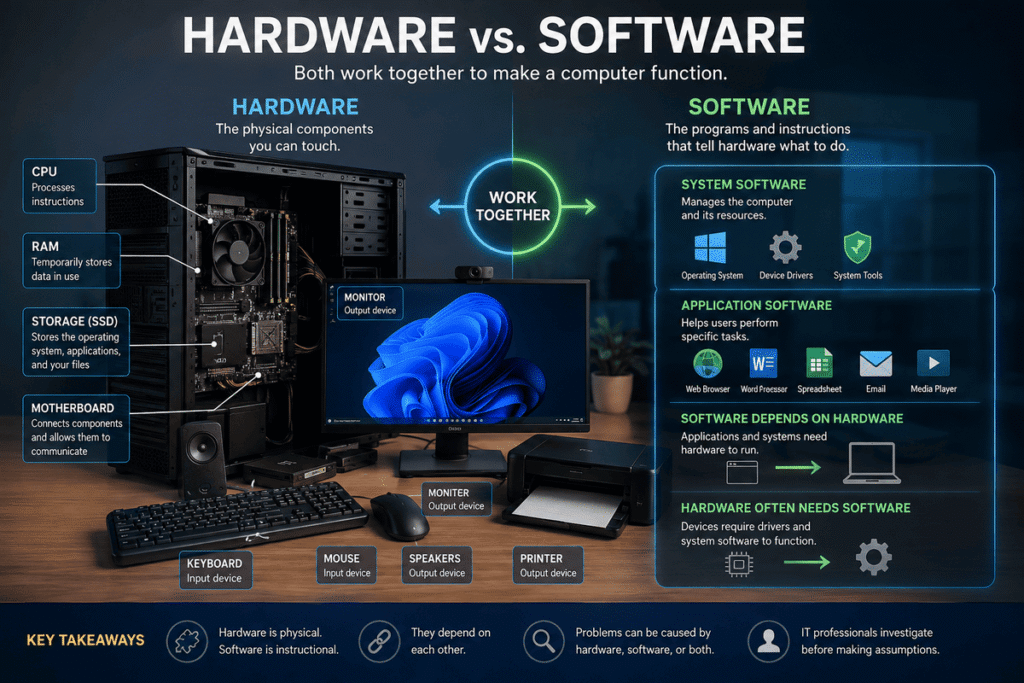
Hardware vs. Software is one of the most important distinctions to understand when learning how computers work. Every computer system depends on both: hardware provides the physical components that make computing possible, while software provides the instructions that tell those components what to do.
A computer without hardware has nothing on which to operate. A computer without software has no instructions to follow.
Understanding the relationship between hardware and software is therefore fundamental for anyone preparing for a career in IT support.
Throughout this lesson, you will learn how to identify hardware and software, understand their roles, recognize how they interact, and begin thinking about computer problems the way an IT professional does.
 Learning Objectives
By the end of this lesson, you should be able to:
- Define hardware and software.
- Explain the fundamental difference between hardware and software.
- Identify common hardware components.
- Identify common types of software.
- Distinguish between system software and application software.
- Explain how hardware and software depend on each other.
- Recognize whether a basic computer problem is likely related to hardware or software.
- Understand why distinguishing between the two is important in IT troubleshooting.
 What Is Hardware?
Hardware refers to the physical components of a computer system.
If you can physically touch a computer component, it is generally considered hardware.
Examples include:
- Processor (CPU)
- Motherboard
- Memory (RAM)
- Solid-state drive (SSD)
- Hard disk drive (HDD)
- Graphics card (GPU)
- Monitor
- Keyboard
- Mouse
- Speakers
- Webcam
- Printer
- Network adapter
Hardware provides the physical infrastructure required for computing.
The processor performs calculations. Memory temporarily holds information. Storage devices preserve data. Input devices allow users to provide information, while output devices present results.
Each component performs a particular role, but the components must work together as a system.
 Think About It
Look at the computer you are currently using.
The screen, keyboard, mouse, internal processor, memory, storage device, motherboard, ports, and network hardware are all examples of computer hardware.
Even though some components are hidden inside the computer, they are still physical devices.
 Internal and External Hardware
Computer hardware can be broadly divided into internal hardware and external hardware.
 Internal Hardware
Internal hardware is located inside the computer.
Common examples include:
CPU — Central Processing Unit
The CPU executes instructions and performs calculations required by programs.
RAM — Random Access Memory
RAM temporarily stores information that the computer is actively using.
Motherboard
The motherboard connects many of the computer’s major components and allows them to communicate.
Storage Drive
An SSD or HDD stores the operating system, applications, documents, photographs, videos, and other data.
GPU — Graphics Processing Unit
The GPU processes graphics and helps produce the images displayed on the monitor.
 External Hardware
External hardware consists of physical devices connected to or used with the computer.
Examples include:
- Monitor
- Keyboard
- Mouse
- Printer
- Scanner
- Webcam
- Speakers
- External storage devices
Many external devices are also called peripherals.
 What Is Software?
Software is the collection of instructions, programs, and data that tells computer hardware what operations to perform.
Unlike hardware, software is not a physical computer component that you can touch.
You can touch the storage device containing software, but you cannot physically touch the software itself.
Examples of software include:
- Windows
- Linux
- macOS
- Web browsers
- Word processors
- Spreadsheet applications
- Media players
- Games
- Communication applications
- Security applications
When you open an application, the computer’s hardware executes the instructions contained in that software.
This relationship is fundamental:
Hardware performs the work. Software provides the instructions.
Hardware vs. Software: The Fundamental Difference
The easiest distinction to remember is:
Hardware is physical. Software is instructional.
Consider a laptop.
The laptop itself contains hardware:
- Screen
- Keyboard
- CPU
- RAM
- SSD
- Motherboard
- Battery
- Wireless network adapter
But the laptop also uses software:
- Operating system
- Web browser
- Applications
- Device drivers
- Security software
Both are necessary for the computer to be useful.
A web browser cannot operate without hardware capable of executing it.
At the same time, the computer hardware cannot independently decide to open a website. It requires software instructions.
 Hardware vs. Software at a Glance
| Hardware | Software |
|---|---|
| Physical | Digital/instructional |
| Can be physically touched | Cannot be physically touched |
| Performs physical computing operations | Provides instructions |
| Can wear out or physically fail | Can become corrupted or misconfigured |
| Includes CPU, RAM, SSD, keyboard, monitor | Includes operating systems and applications |
| Requires software to perform useful tasks | Requires hardware on which to operate |
This distinction may appear simple, but it becomes extremely important when troubleshooting computers.
 Two Major Categories of Software
Software can be divided into several categories, but two of the most important for beginners are:
 1. System Software
System software manages the computer and provides the environment in which other software can operate.
The most important example is the operating system.
Common operating systems include:
- Microsoft Windows
- macOS
- Linux
- Android
- iOS
System software helps manage:
- Memory
- Storage
- Hardware devices
- Files
- Processes
- Applications
- User interaction
Device drivers are another important form of system software. Drivers help the operating system communicate with particular hardware devices.
 2. Application Software
Application software helps users perform specific tasks.
Examples include:
- Web browsers
- Word processors
- Spreadsheet programs
- Email applications
- Video conferencing applications
- Graphic design programs
- Media players
- Games
For example, when you use a web browser to visit a website, you are using application software.
The browser depends on the operating system, and both depend on the computer’s hardware.
 Hardware and Software Work Together
Hardware and software are different, but they are not independent.
They form a working system.
Imagine that you click an application icon.
Several things begin happening:
1. You provide input.
Your mouse or touchpad detects the click.
2. Hardware communicates the input.
The computer receives information from the input device.
3. Software interprets the action.
The operating system determines what you selected.
4. The application is loaded.
Information needed by the program is retrieved from storage and placed into memory.
5. The CPU executes instructions.
The processor performs the operations required by the software.
6. The result is displayed.
The graphics system sends information to the monitor.
What appears to be a simple click actually requires continuous cooperation between multiple hardware components and several layers of software.
 A Real-World Example: Visiting a Website
Suppose you want to visit a website.
You open a browser and type an address.
Hardware involved may include:
- Keyboard
- CPU
- RAM
- Storage
- Network adapter
- GPU
- Monitor
Software involved may include:
- Operating system
- Device drivers
- Network software
- Web browser
The keyboard captures your input.
The operating system and browser process it.
The network hardware communicates with other systems.
The processor executes instructions.
RAM temporarily holds active information.
The graphics hardware helps generate the visual result.
The monitor displays the website.
A single everyday activity can involve many layers of hardware and software working together.
Software Needs Compatible Hardware
Not every piece of software can operate on every computer.
Software normally has hardware requirements.
A program might require:
- A certain processor architecture
- A minimum amount of RAM
- A specific amount of storage space
- Particular graphics capabilities
- Certain hardware features
For example, an advanced graphics application may require considerably more memory and processing power than a simple text editor.
This is why IT professionals frequently check system requirements before installing software.
 Hardware Often Needs Software Too
The dependency works in the opposite direction as well.
Many hardware devices require software to function correctly.
Consider a printer.
Physically connecting a printer does not always guarantee that the computer will know how to use it.
The operating system may require a device driver.
The driver acts as a communication layer between the operating system and the hardware.
This gives us another important principle:
Software needs hardware to run, and hardware often needs software to function correctly.
 Hardware vs. Software in IT Troubleshooting
For an IT support professional, understanding the difference between hardware and software is not merely academic.
It is part of troubleshooting.
Imagine a user reports:
“My computer isn’t working.”
That statement does not identify the problem.
An IT professional begins investigating.
Is the problem related to:
- Power?
- Monitor?
- Memory?
- Storage?
- Keyboard?
- Operating system?
- Application?
- Driver?
- Configuration?
- Network connection?
One of the earliest troubleshooting decisions is often determining whether the symptoms point toward hardware, software, or an interaction between both.
 Possible Hardware Problems
Examples of hardware-related symptoms can include:
- Computer does not power on.
- Broken display.
- Damaged keyboard key.
- Storage device failure.
- Faulty memory module.
- Overheating component.
- Disconnected cable.
- Failed power supply.
- Physically damaged USB port.
These problems involve physical components.
 Possible Software Problems
Examples of software-related problems can include:
- Application crashes.
- Operating system errors.
- Incorrect configuration.
- Corrupted files.
- Driver problems.
- Failed software updates.
- Application incompatibility.
- Software that refuses to launch.
These problems primarily involve programs, instructions, configurations, or data rather than physical damage.
 The Difference Is Not Always Obvious
An important lesson for future IT professionals is that the same symptom can sometimes have several possible causes.
Suppose a computer is running very slowly.
Is that hardware or software?
It could be either.
Possible hardware causes might include:
- Insufficient RAM
- Failing storage
- Thermal problems
Possible software causes might include:
- Too many programs running
- Background processes
- Incorrect configuration
- Software errors
There could even be a combination of both.
Professional troubleshooting therefore requires investigation rather than guessing.
Develop the IT Professional Mindset
When a user reports a computer problem, begin training yourself to think in categories.
Ask yourself:
What is the symptom?
Then consider:
Could hardware cause this?
Could software cause this?
Could both be involved?
Do not immediately replace hardware.
Do not immediately reinstall software.
First gather information.
This habit will become increasingly important as you progress through Professional IT Foundations.
 Practical Activity — Hardware or Software?
Look at the computer or device you are currently using.
Identify at least five examples of hardware.
For example:
Now identify at least five examples of software installed or running on the device.
Finally, choose one application and answer:
What hardware does this application depend on to operate?
Try to identify at least three hardware components.
🕵️ Mission — Think Like an IT Support Professional
A user tells you:
“I click my web browser, but nothing happens.”
Your mission is not to solve the problem yet.
Instead, classify possible causes.
Write down:
Three possible software-related causes
Two possible hardware-related causes
Then ask yourself:
What information would I need before deciding which cause is most likely?
This is the beginning of professional troubleshooting.
 Skills Checklist
Before continuing, make sure you can confidently say:
I can define hardware.
I can define software.
I can explain the difference between hardware and software.
I can identify internal and external hardware.
I can recognize examples of system software.
I can recognize examples of application software.
I understand that hardware and software depend on each other.
I understand the basic purpose of a device driver.
I can distinguish basic hardware problems from software problems.
I understand that one symptom can have multiple possible causes.
If some of these concepts are still unclear, review the corresponding section before moving to the evaluation.
 Lesson Summary
In this lesson, you learned that hardware consists of the physical components of a computer system, while software consists of the instructions, programs, and data that direct hardware operations.
You also learned that:
- Hardware can be internal or external.
- System software manages the computer and its resources.
- Application software helps users perform particular tasks.
- Hardware and software continuously interact.
- Software requires compatible hardware.
- Hardware devices may require drivers or other software.
- Computer problems can originate from hardware, software, or both.
- IT professionals investigate symptoms before deciding what caused a problem.
The distinction between hardware and software is simple at the surface, but understanding their interaction creates an essential foundation for everything that follows in IT.
Knowledge Evaluation
Answer each question before checking the Answer Key.
1. What is computer hardware?
A. Programs installed on a computer
B. The physical components of a computer system
C. Information stored on the Internet
D. Instructions executed by applications
2. Which of the following is software?
A. RAM
B. Keyboard
C. Operating system
D. Motherboard
3. Which statement best describes software?
A. Physical electronic components
B. Programs and instructions that tell hardware what to do
C. Only files stored on an SSD
D. External devices connected to a computer
4. Which of the following is an example of internal hardware?
A. Web browser
B. Spreadsheet application
C. CPU
D. Operating system
5. What is the primary purpose of system software?
A. Physically connect components
B. Manage computer resources and provide an environment for other software
C. Replace damaged hardware
D. Store electricity
6. Which is an example of application software?
A. Web browser
B. RAM
C. CPU
D. Motherboard
7. Why might a hardware device require a driver?
A. To physically repair the device
B. To increase the size of the device
C. To help the operating system communicate with the hardware
D. To convert hardware into an application
8. A computer is running very slowly. What should an IT professional conclude first?
A. The RAM must be defective
B. The operating system must be reinstalled
C. The computer must be replaced
D. Both hardware and software causes should be investigated
9. Which statement about hardware and software is correct?
A. Hardware can perform every useful task without software
B. Software can operate without physical hardware
C. Hardware and software work together to create a functioning computer system
D. Hardware and software are different names for the same thing
10. A user says an application will not open. What is the best initial approach?
A. Immediately replace the computer
B. Assume the application is permanently damaged
C. Investigate the symptoms and consider possible software and hardware causes
D. Delete all user files
 Final Reflection
Before moving forward, think about this question:
Why is understanding the difference between hardware and software important for someone working in IT support?
Try explaining the answer in your own words.
If you can explain not only what hardware and software are, but also how they depend on each other and why the distinction matters during troubleshooting, you have understood the central concept of this lesson.
 Finished?
You have completed Lesson 3 — Hardware vs. Software.
Now check your answers and review the explanations for each question.
Do not focus only on your score. Pay attention to why each answer is correct. Understanding the reasoning is more valuable than memorizing the answer.
 Continue Your IT Journey
Once you have checked your answers and confirmed your understanding, the next lesson will take you deeper into how computers actually handle information.
 Up Next: Lesson 4 — Input, Processing, Output, and Storage
You will explore the fundamental cycle that explains how computers receive information, process it, produce results, and preserve data for future use.
Learn → Practice → Evaluate → Check → Review → Continue